Create goal plans in greytHR
Subscribe to watch greytHR how-to video
A goal plan is a simple framework with a set timeline where managers define clear objectives for their team to achieve. These objectives must align with company policies. The goal plans can range from short-term, like quarterly goals, to long-term, such as annual goals.
Goal plans help employees add SMART (Specific, Measurable, Achievable, Relevant, Time-bound) goals.
Note: Before creating the goal plans, you must know that you can manage and control the actions that can be performed on the Goal Plans feature. This can be done from the User Roles page. The actions include creating goal plans, creating goals, editing/deleting goals, adding comments, and marking progress.
Create goal plans
To create a new goal plan, from the greytHR Admin portal, hover over the 9 dots and select Performance Management > Goal Plans > Create Plan.
Setup Plan Details

- Start by selecting the Goal Plan Type as per your organization’s policies. Based on organizational needs, greytHR offers the following types of goal plans:
- Performance Goal Plan: Focuses on specific performance targets within a set period.
- Developmental Goal Plan: Aim at personal and professional growth by targeting skills and competencies for long-term career development.
- Organizational: Focuses on an organization’s long-term objectives, aligning resources and efforts toward achieving its overarching mission and vision over an extended time.
- Others: Covers various objectives that do not fit standard categories, such as special projects or unique tasks that support broader organizational goals.
- Fill in the plan details such as Goal Name, Performance Period, and Goal Plan Duration. You may also add a description if needed.
- Note: The Goal Plan Duration must begin on or after the start date of the performance period and end on or before the performance period’s end date.
- Upload a policy document. This document can serve as a guideline for employees to refer to when adding their goals. However, uploading it is optional.
- Click Next.
Select Employees
Under this section, you must select the employees who are enrolled for the selected goal plan. You can also add a new set of employees by clicking +.
Note: You can only view, manage, and create reviews for employees included in your assigned employee shortlist .

Set Timelines
Under this section, you can select the required number of days users can modify their goals after the goal plan starts and also the check-ins after the goal plan ends.
Note:
- You can select and associate a past performance period while configuring a goal plan. For back-dated performance periods you can add goals for employees (individually or in bulk).
- Employees and managers can update progress only if the setting, Users can update progress and check in until extends to a future date.
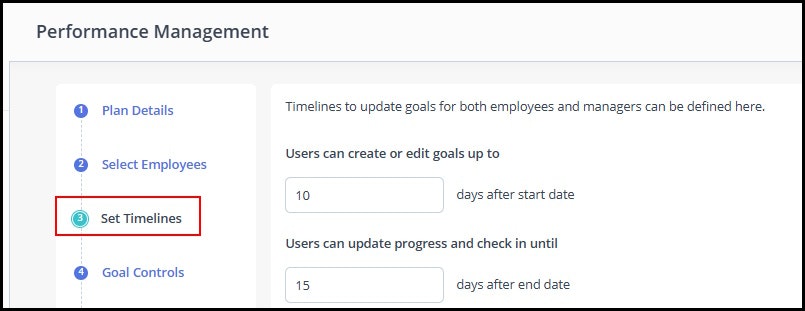
 Provide employees flexibility to adjust their goals after the cycle starts.
Goal Controls
You can define settings like weightage, check-in reminders, and goal categories here.

Let us take a closer look at what you can do in this section:
- Check-in reminders: These reminders are sent to the assessors on a weekly or monthly basis.
- Remind On: Select the day you want to send the reminders.
- Enable weightage for goals: Allow the managers/employees to add value to their goals.
- Goal Categories: Choose from categories like Customer, Finance, Learning, or Business Process based on your organization’s needs. You can select more than one category. Additionally, you can create custom categories through Manage Categories, similar to the default ones, and define Goal Count (min) and Goal Count (max) criteria.
- Goal Count: Enter the minimum and maximum number of goals that can be added by the managers/employees.
Assign weightage to goals that need higher priority over others.
Set up user controls
Now that you have configured a major part of the goal plan, the next step is to define the rights and controls for the employees and managers.
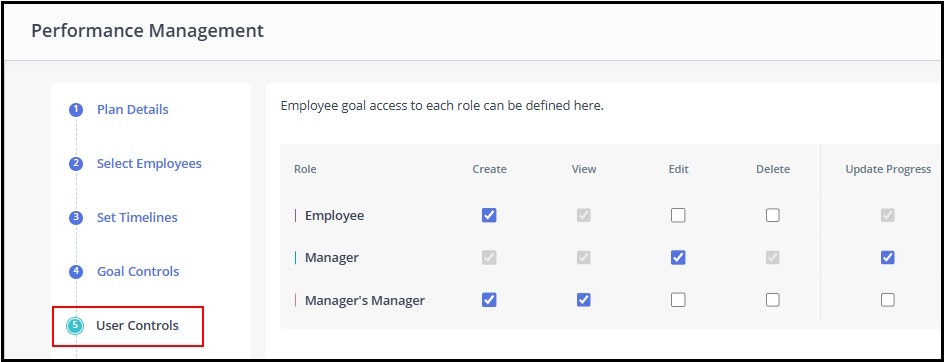
Let us learn how to manage the access for each of these roles:
- Employee: Can View and Update Progress of their goals by default. You can also allow the employee to Create, Edit, and Delete goals as per your company policy.
- Manager: Can Create, Edit, and Delete goals by default. You can also allow the managers to View and Update Progress of the goals as per your company policy.
- Manager’s manager: No default roles are defined. This role can be customized as per the requirements of your company policy.
Summary
The Summary gives you an overview of the configured goal plan, letting you review the setup to ensure everything is correct and accurate. You can also edit the summary by clicking  available in each section.
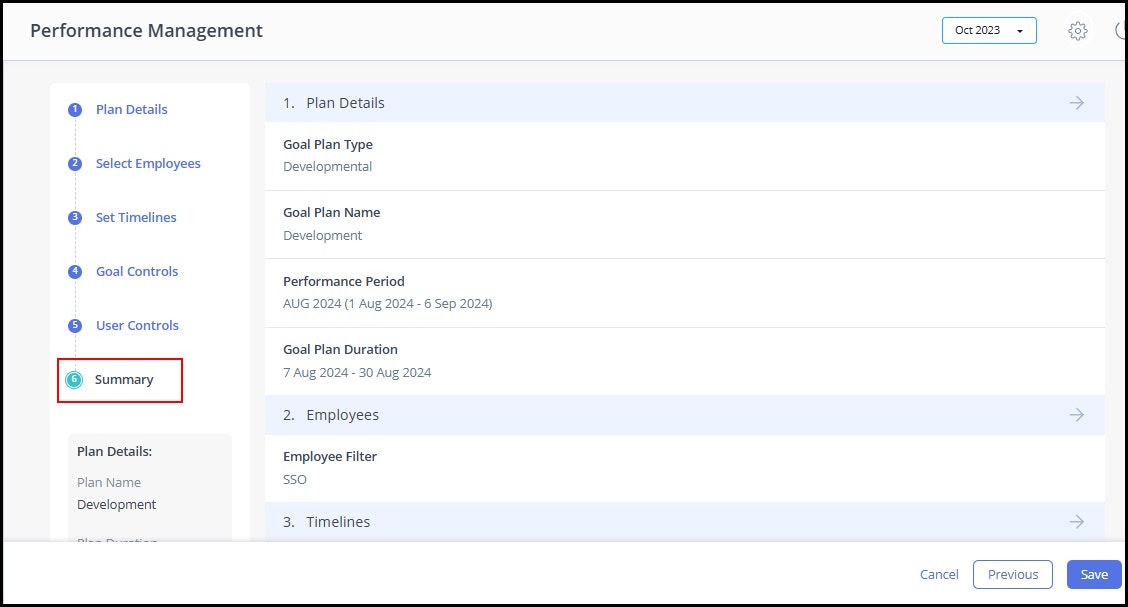
- After reviewing, click Save.
- Click Confirm. A success message appears, and the configured goal plan moves to the Draft tab.
Note: You can edit or delete a goal plan by clicking the Gear (Settings)/Delete icons on the goal plan card.
Activate the goal plan
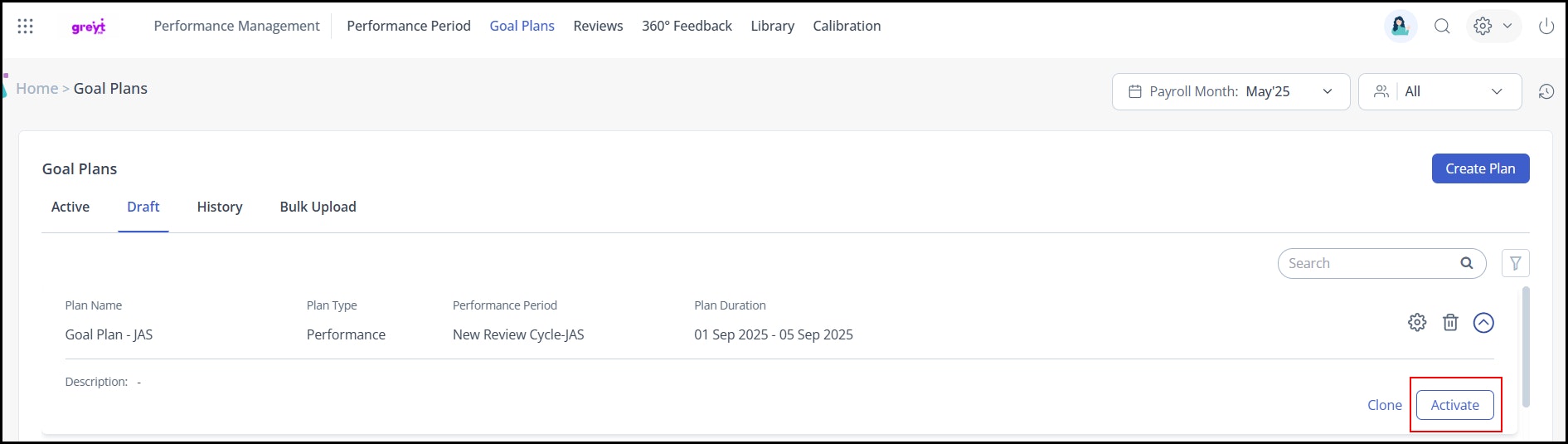
After creating the goal plan, you must activate it from the Draft tab.
Note: Once the goal plan is activated, you cannot make changes.
Now that the goal plan setup is complete, learn about the key tasks involved in managing the goal plan.